

🛠 This page is for engineering teams self-hosting their own Lightdash instance. If you want to set up scheduled deliveries, go to the Scheduled deliveries guide.
Slack unfurl or using our Scheduler
If you are running Lightdash on self-hosting, you will also have to run this headless browser on your infrastructure.
How it works
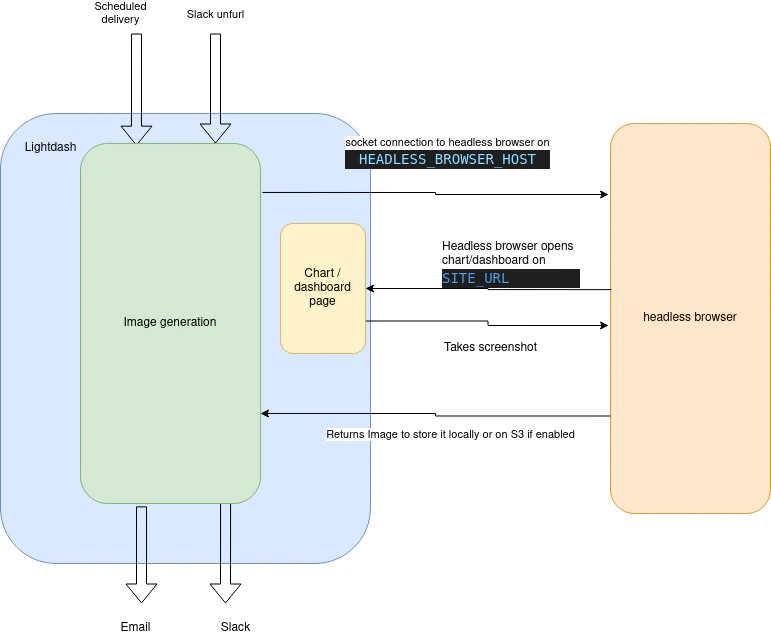
ws://HEADLESS_BROWSER_HOST:HEADLESS_BROWSER_PORT
Then using playwright we will browse the chart/dashboard on lightdash on SITE_URL
We load the chart/dashboard on the browser and then a screenshot when it finishes loading
Then we store that image in S3 (if enabled) or locally and then return the image URL.
If the image was requested by Slack unfurl, we will unfurl the image using the Slack API. If the image was requested by Scheduler, we will send the image to the destination(s) (email or Slack)
Configure headless browser on lightdash
Lightdash uses Browserless for headless browser functionality. We recommend using the
ghcr.io/browserless/chromium image with version v2.24.3, which is the version used in Lightdash Cloud deployments.HEADLESS_BROWSER_HOST: If you’re running docker, this could beheadless-browser, orlocalhostif you’re running it locally (or with network:host)HEADLESS_BROWSER_PORT: Optional port for headless browser, defaults to 3001SITE_URL: The URL for your Lightdash instance.
This SITE_URL variable (eg: https://eu1.lightdash.cloud) needs to be accessible from this headless browser service, either by a local connection, or via Internet. Otherwise it will not be able to open a page and generate the image.This means that if you are using docker locally, make sure the headless browser pod can reach the lightdash pod. Or follow the docker documentation to enable
network:hostConfigure timeouts for large dashboards
When exporting large dashboards via scheduled deliveries, the default timeout values may not be sufficient. If you’re seeing consistent errors when exporting dashboards with many charts or complex visualizations, you likely need to increase the timeout settings. There are two timeout values to consider:Headless browser timeout
The Browserless container has its ownTIMEOUT environment variable that controls how long it allows a single browser session to run. If your dashboards take a long time to fully render, the browser session may be terminated before Lightdash can capture the screenshot.
Set the TIMEOUT environment variable on the headless browser container (the ghcr.io/browserless/chromium image) to a higher value in milliseconds. For example, to allow up to 5 minutes:
Lightdash scheduler timeouts
You should also ensure that the Lightdash scheduler timeout values are high enough to accommodate the longer render times. Set these environment variables on the Lightdash application:| Variable | Description | Default |
|---|---|---|
SCHEDULER_JOB_TIMEOUT | Maximum time in milliseconds before a scheduled delivery job is timed out. | 600000 (10 min) |
SCHEDULER_SCREENSHOT_TIMEOUT | Maximum time in milliseconds for taking a screenshot of a chart or dashboard. | — |